Owner Guide: Running an RPG Hub
| BODY | MIND | SOUL |
| 10 | 6 | 7 |
This guide explains how to set up and manage an RPG Hub as an owner. It is written for people who are new to the site and want a practical walkthrough of what each part of the hub does, how members are added, and how to keep campaign information organized over time.
An RPG Hub is the shared home for one game or campaign. Depending on which connected plugins are active, a hub can include a home page, member management, campaign notes, character sheets, game assets, and a private forum area.
Understanding the Side Rail
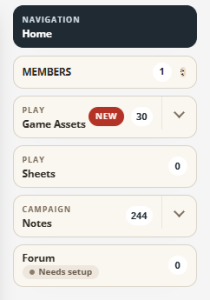 The side rail is the central navigation menu for a hub. It is the main way owners and members move between the hub home page and the major hub sections, such as Member Management, Campaign Notes, Character Sheets, Game Assets, and Forum.
The side rail can notify the owner (and members) of new items that have been added, provided they have the appropriate access. New forum posts, new character sheets, new game assets, and new members.
For owners, this matters because day-to-day hub administration often starts there. If you need to review members, edit campaign information, manage shared files, or move into another hub tool, the side rail is the fastest route.
Some side rail badges can be expanded and contracted to show recent activity. The area is limited, though, so you shouldn’t rely on that expanded side rail to provide comprehensive information. For sections with limited items, such as Character sheets, it is a good way to quickly open an item.
Quick Start Checklist
- Create the hub and give it a clear name.
- Create the forum if the hub prompts you to do so and the campaign will use discussion tools.
- Choose whether the hub should be public or private.
- Set the join status to Request to Join, Invite Only, or Closed.
- Add a header image and write the home page introduction.
- Add members, co-owners, or email invites.
- Set up campaign notes so the game has an organized owner-facing record of people, places, items, and ongoing threads.
- Add character sheets and game assets if those sections are being used for this campaign.
What Owners Control
The owner is the primary manager of a hub. Owners can change hub settings, manage members, update the home page, and manage hub content. Owners can also promote trusted people to co-owner status so another person can help run the group.
Members can access the hub according to their membership and content permissions. A member can also be switched to read-only if access should remain visible but editing and management access should be removed.
Create a New Hub
When creating a new hub, start with a simple name that clearly identifies the game, campaign, or group. The hub name is what members will see in hub listings, invite emails, and internal navigation.
During setup, pay attention to these two settings:
Visibility
- Public: The hub can appear in the public hub directory.
- Private: The hub does not appear in the public directory.
Visibility controls whether the hub is listed publicly. It does not replace membership control. A public hub can still restrict who is allowed inside.
Join Status
- Request to Join: People can ask for access and owners can approve or decline those requests.
- Invite Only: People must be added directly or invited by a hub manager.
- Closed: The hub is not accepting new members right now.
For most private campaigns, Invite Only is the cleanest starting point. For open community games, Request to Join may be a better fit.
Create the Forum Early
New owners are prompted to create a forum as soon as the hub is created, so forum setup should be treated as an early part of the process rather than an optional cleanup step later.
Even if the group will use the forum lightly, it is worth deciding right away whether the hub should have a dedicated discussion space for scheduling, out-of-character planning, downtime posts, in-character scenes, or rules questions.
If the campaign will use the forum at all, creating it early gives members a clear place to post as soon as they arrive. It also helps the side rail feel complete from the start, since Forum is one of the main hub destinations people may expect to see.
It is important to note that forums are optional. Even though you are prompted early to create one, you can choose to skip this step if the campaign does not require a dedicated discussion space.
Set Up the Hub Home Page
The hub home page is the front door for the campaign. This is usually the best place to explain the game premise, current status, table rules, posting expectations, and where new members should begin.
Owners can manage the home page from the Hub Settings area.
Header Image
You can upload or choose a header image for the hub. The current recommendation is 800 x 400 pixels, though the system can crop an image if needed.
A good header image makes it easier for members to recognize the campaign at a glance, especially if they belong to several hubs.
Home Page Content
Use the home page editor to add a short welcome, campaign summary, scheduling notes, content warnings if needed, and any links or instructions members should see first.
A simple structure that works well is:
- What this campaign is about
- What members should read first
- Where to find notes, sheets, and discussion
- How often the group plays or posts
- Any important etiquette or tone guidance
Manage Members and Access
The Member Management area is where owners handle current members, pending join requests, and invitations.
Adding Existing Site Users
If a person already has an account on the site, add that user directly from the member tools.
Inviting by Email
If site registration is enabled, you can send a registration invite by email. When that person registers using the same email address the invite was sent to, the new account is added to the hub automatically.
If the person registers with a different email address, the system will not match the invitation to the account.
Join Requests
If the hub is set to Request to Join, pending requests appear in member management. Owners can approve or decline each request.
Roles Inside the Hub
- Owner: Primary manager of the hub.
- Co-owner: Can help manage the hub and its shared content.
- Member: Standard participant access.
- Read Only: Can keep access without normal editing or management ability.
Co-owner access should be reserved for someone trusted to help manage the game, members, and shared campaign materials.
Use Campaign Notes to Organize the Game
Campaign Notes is the main organization tool for the campaign. It is designed for structured reference material and fast note capture, so owners do not need to keep everything in one long document.
Use this section for information the owner needs to organize and retrieve later, especially anything that benefits from tags, relationships, and search. The owner at his or her discretion, can share campaign notes entries via copy and paste.
Reference Entries
Reference entries are the durable records for people, locations, items, encounters, factions, events, and open threads.
Use an entry when the information should remain easy to find over time. Good examples include:
- Important NPCs
- Settlements and landmarks
- Important items or clues
- Recurring threats or factions
- Ongoing mysteries and unresolved plot threads
Quick Notes
Quick notes are for developments that happen during or after play. These can be small reminders, discoveries, rumors, or raw story updates that may later become formal entries.
A good quick note answers one or more of these questions:
- What happened?
- Who was involved?
- Where did it happen?
- What should the group remember later?
Tags and Related Links
Tags help with search and browsing. Related links connect records so a location can link to the people, items, and events tied to it.
As a rule, create the main locations and major NPCs early, then link newer notes and records back to those anchor entries. This makes search results much more useful later.
There are a few quick actions an owner can use in the Campaign Notes section to manage entries efficiently.
Rename Entries
An owner can rename an entry section by clicking the pencil icon next to the section title. For example, if a section is titled “People” but you want to rename it to “Important NPCs,” click the pencil icon and enter the new name.
Search and Browse
The search tools are there to help owners answer practical questions quickly. Instead of scrolling through session summaries, an owner can search for a person, place, item, or thread and then follow the related content.
Importing Campaign Data
Owners can import campaign note data from inside the Campaign Notes section. The import flow supports a starter JSON template, pasted JSON, and local .json uploads.
Use the sample template in the import dialog to get started. Supply the template to your favorite AI agent, and ask them to create locations, people, items, etc, based on your campaign setting. Some AI agents are better than others; I use Grok quite often but for this purpose it could not supply comprehensive lists. Chat GPT seemed to do better. I was able to import over 200 people, places, things and factions for Fallout 4 relatively easily. There are a lot of choices, so experiment to see what works best for your campaign. If you need some help with this, don’t hesitate to send Steel Rat a private message on this site.
Before importing, export the current campaign notes if the hub already contains important data. Importing can update existing imported records and can also overwrite matching import data. You can find the export options in your main hub page hub settings.
Use a dry run first so the system can report creates, updates, and possible conflicts before anything is saved.
Note: The importer cannot import images or any other media files. It can however re-create links to existing media from your export, as long as the files exist in your Game Assets and media library.
Exporting Campaign Data
If the campaign notes section already contains material you care about, export that data before any large cleanup or import pass. Exports are the safest way to keep a recoverable snapshot of the structured campaign library. The export options can be found in your main hub page hub settings.
Character Sheets
If the character sheets integration is active, the Character Sheets section gives the hub a shared place to view and manage campaign sheets.
This section is useful for keeping everyone on the same page about active characters, current sheet versions, and sheet history. It works best when owners set expectations for naming and when players know whether they should update their own sheets directly or hand that work to a GM.
If the section is unavailable, that usually means the separate character sheets plugin is not currently active for the site.
Game Assets
The Game Assets section is the shared media library for the hub. Use it for maps, handouts, reference images, documents, and similar campaign material.
This section is especially helpful when the group needs reusable files that may also be shared into campaign notes or forum posts.
Good uses for game assets include:
- Region and encounter maps
- Character portraits
- Item cards or visual references
- House rules and setting documents
When possible, give files clear names before uploading so they remain easy to identify later.
Forum
If forum integration is active, the Forum section provides the discussion space for the hub. This is where longer conversations, in-character posts, planning threads, downtime posts, and archive-style discussion often fit best.
Forums are containers for topics, or other forums. Posts and comments can only occur in Topics.
The forum is generally a better place than the home page for anything that will grow over time or involve back-and-forth replies.
Depending on the campaign style, common forum uses include:
- Session scheduling
- Downtime actions
- In-character journals or scene threads
- Rules questions
- Out-of-character planning
The forum is primarily designed for Play-By-Post gaming. This is still a viable option for groups that don’t have common free-time schedules. Here are some of the major features of the HDRPG Hub forums:
- Unlimited forums and topics
- Threaded or nested topics
- Topic sorting
- Forums and/or topics can be made private for one or more hub members (Topics inside private forums inherit the forum privacy)
- In a topic, the owner/GM and members/players can insert die rolls using the integrated die roller, insert private text and game assets for selected members
A Good First-Day Owner Workflow
- Create the hub and set it to Private or Invite Only if the campaign is not meant for public browsing.
- Add the header image and a short welcome on the home page.
- Add one or two co-owners if another GM or organizer should help manage the hub.
- Add the first wave of members or send registration invites.
- Create a few core Campaign Notes entries for major locations, factions, and NPCs.
- Upload the maps, reference documents, or art the group will need immediately.
- Create the initial forum threads if the campaign will use forum play or structured discussion.
- Review the hub as a normal member would, so the first impression feels complete and clear.
Recommended Ongoing Habits
- Keep the home page focused on evergreen guidance, not temporary announcements.
- Use Campaign Notes to keep the owner-side campaign record organized and searchable.
- Use quick notes during or immediately after play, then convert important information into fuller entries later.
- Promote trusted helpers to co-owner only when they truly need management access.
- Use read-only status when someone should keep access without normal participation rights.
- Before major imports or large reorganizations, export campaign notes first.
- Keep file names, titles, and entry labels consistent so search remains useful.
Common Questions
Should a hub be public or private?
Use Public if you want the hub listed in the site directory. Use Private if the group should only be discovered through direct links or invitations.
What is the difference between Invite Only and Closed?
Invite Only still allows owners to add or invite new people. Closed means the hub is not accepting new members right now.
When should something be a quick note instead of a full campaign entry?
Use a quick note for fresh developments or reminders. Use a full entry for information the group is likely to revisit repeatedly.
Can a co-owner help manage the hub?
Yes. Co-owners are intended to help manage shared hub content and administration.
Why is a section missing or marked unavailable?
Some sections depend on connected plugins. If Character Sheets or Forum are unavailable, that usually means the related integration is not active on the site right now.
Final Advice for New Owners
Start small and make the first impression clear. A hub does not need every section filled out on day one. What matters most is that a new member can arrive, understand what the campaign is, see how access works, and immediately find the information they need next.
If the home page is clear, the member list is under control, and the campaign notes are organized around real people, places, items, and events, the hub will already be doing its job well.
